To copy a sent campaign so you can resend it:
- Click Campaigns and navigate to Sent in the left side menu.
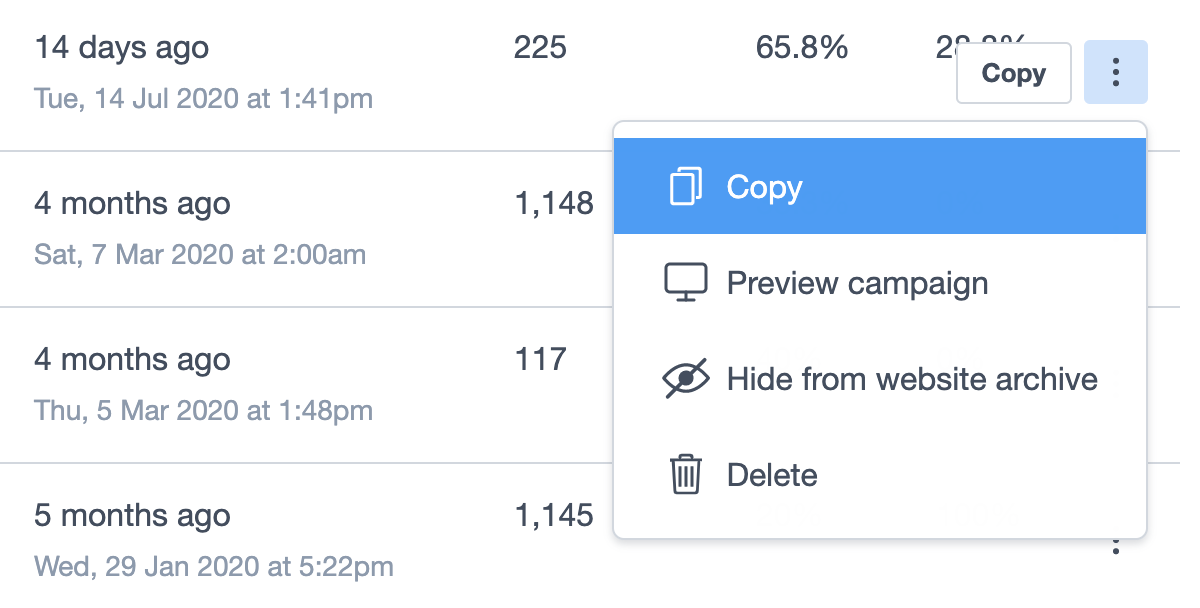
- Find the sent campaign you want to copy, then click the three-dot menu (available when viewing as a list or thumbnail).
- Choose Copy from the available options:
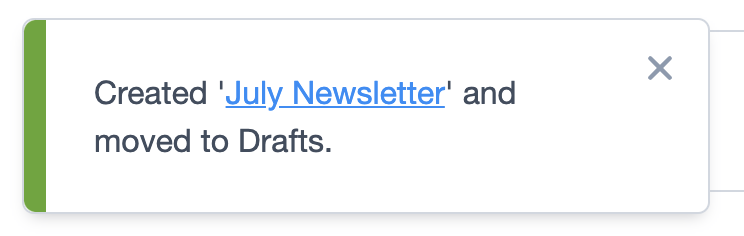
- Once copied, the email will be added to the top of Drafts section. You can also click the shortcut link from the notification to open the "Campaign checklist" page.
- Click the pencil icon next to the campaign name if you need to rename the campaign.
- Use the Edit buttons to make any required changes, to the subject or campaign design. Select Manage plain text if updates are required.
- Click Select recipients to choose who will recieve the new campaign.
- Don't forget to test everything using the Preview & test menu. It's easy to make mistakes when copying previous work.
- Click Prepare to send to complete the final stages of your campaign send.
Copying a sent campaign will not affect reports for the previously sent campaign in any way.
Recent emails
As an alternative to copying an entire campaign, you can create a new campaign, then choose a design based on a previous email you have sent — so long as you didn't import it from your computer or the web.
To do so:
- Click Campaigns.
- Click Create a campaign at the top right.
- After naming your campaign, click Continue.
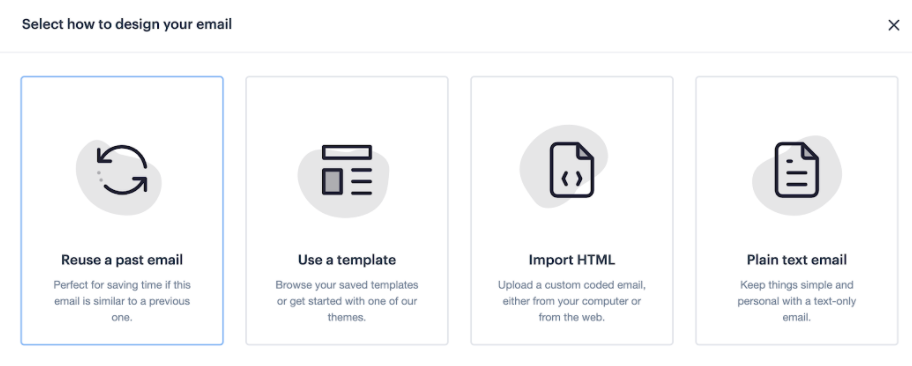
- Click Design email and then select Reuse a past email.
- You can search for the campaign you’re looking for by name, subject, or tag, or just scroll until you find it. Each campaign has a quick preview to help you be certain you’ve found the right one.