Permission required to use this feature: full access
Multiple people can be added to a team, with varying permissions to access parts of the application.
Add people to your team
To give account access to a new person:
- Click your profile image at the top right, then select Manage team.
- Click Add another person, then enter their name and email address.
- Click Add [name] to send the invitation email.
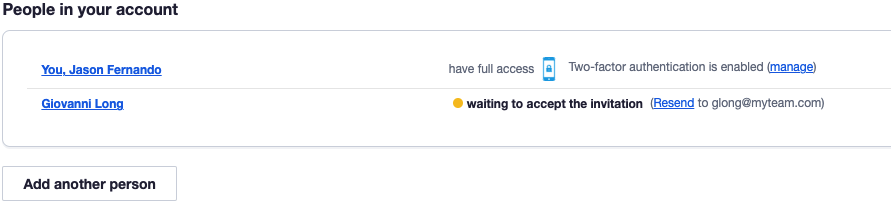
You'll see "waiting to accept the invitation" next to the new person's name.
This icon indicates who is the primary contact, meaning the person who receives account-related correspondence from Campaign Monitor.
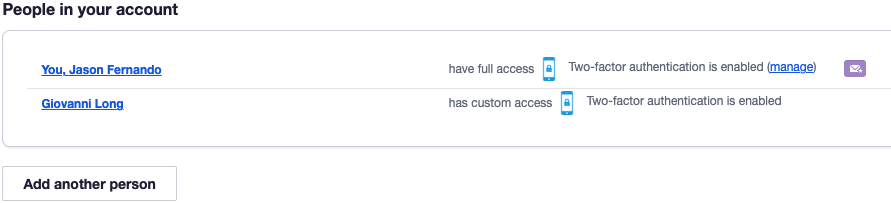
If this is the first additional person in your account, when they have accepted their invitation, you'll notice an email icon is displayed next to your name.
If the invitee hasn’t accepted the invitation and created their password within 3 days, an automatic reminder email will be sent.
Resend an invitation
You can manually resend the invite too:
- Click your profile image at the top right, then select Manage team.
- Click Resend next to their name.
Remove people from your team
To delete a person from your team:
- Click your profile image at the top right, then select Manage team.
- Hover your cursor over the person's name, then click the trash can icon that appears on the right.
There is no confirmation prompt or undo when you delete somebody from an account, so be sure you want to remove them before you click the trash can icon.